 OpenWiring
#17. AI assistant
The AI assistant is a colleague you can ask, in your own language, to explain, check or draw parts of the schematic. It works with Claude (Anthropic), ChatGPT (OpenAI) and Gemini (Google), using your accounts. It answers in the language of the interface.
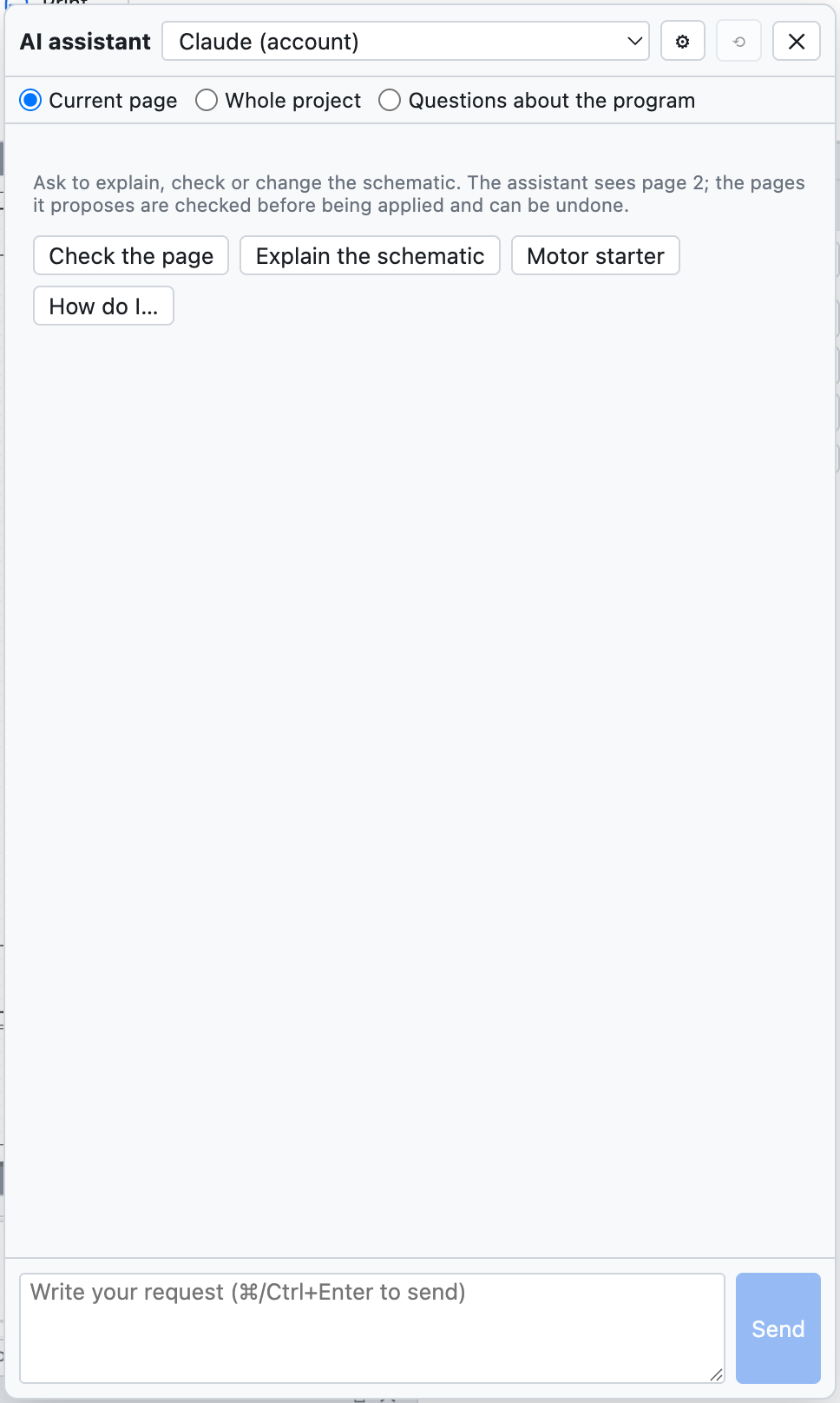
The assistant panel, with the quick buttons.
#Opening the assistant
Project ▸ AI assistant… or ⌘I opens the panel on the right; the schematic stays visible and you can work while the assistant answers.
At the top you choose:
- the profile: which assistant and which account;
- the context: what the assistant sees.
| Context | The assistant receives |
|---|---|
| Current page | the page in text format, the format guide with the symbol catalogue, the check problems on the page |
| Whole project | all the pages, the project data (locations, cables, PLC cards) and all the check problems |
| Questions about the program | the OpenWiring manual, for questions about menus and commands |
#What to ask
| Request | Example |
|---|---|
| Explain | «Explain how the circuit on this page works» |
| Check | «Check this page: connections, tags, protection, IEC 60204-1» |
| Draw | «Add a page 7 with a star-delta starter for a 15 kW motor» |
| Modify | «Add a fault lamp controlled by contact 95-96 of the overload relay» |
| Use the program | «How do I create a two-level terminal strip?» |
The quick buttons Check the page, Explain the schematic, Motor starter, How do I… send ready-made requests. ⌘Enter sends, Cancel stops a long answer, ⟲ starts a new conversation.
#When the assistant draws
If the answer contains pages in text format, the panel checks them at once:
- Ready: adds page 7 · no problems → press Apply to project;
- if there are errors or check problems, they appear under the answer: Ask for a fix sends errors and problems back to the assistant, and it corrects them.
Applying is undone with ⌘Z. A page with the same number as an existing one replaces it; a new number adds a page.
Real example. Asked «Add a new page (number 7) with a direct-on-line starter for a 4 kW three-phase motor: motor protection switch, contactor, terminal strip and motor», Claude answered in about 30 seconds with the complete page (motor protection switch
-7Q1, contactor-7K1, terminals-X2, motor-7M1, cable-7W1), pointing out by itself that the contactor coil was missing in the control circuit.
#Profiles and accounts
Project ▸ AI assistants: profiles and accounts… (or ⚙ in the panel).
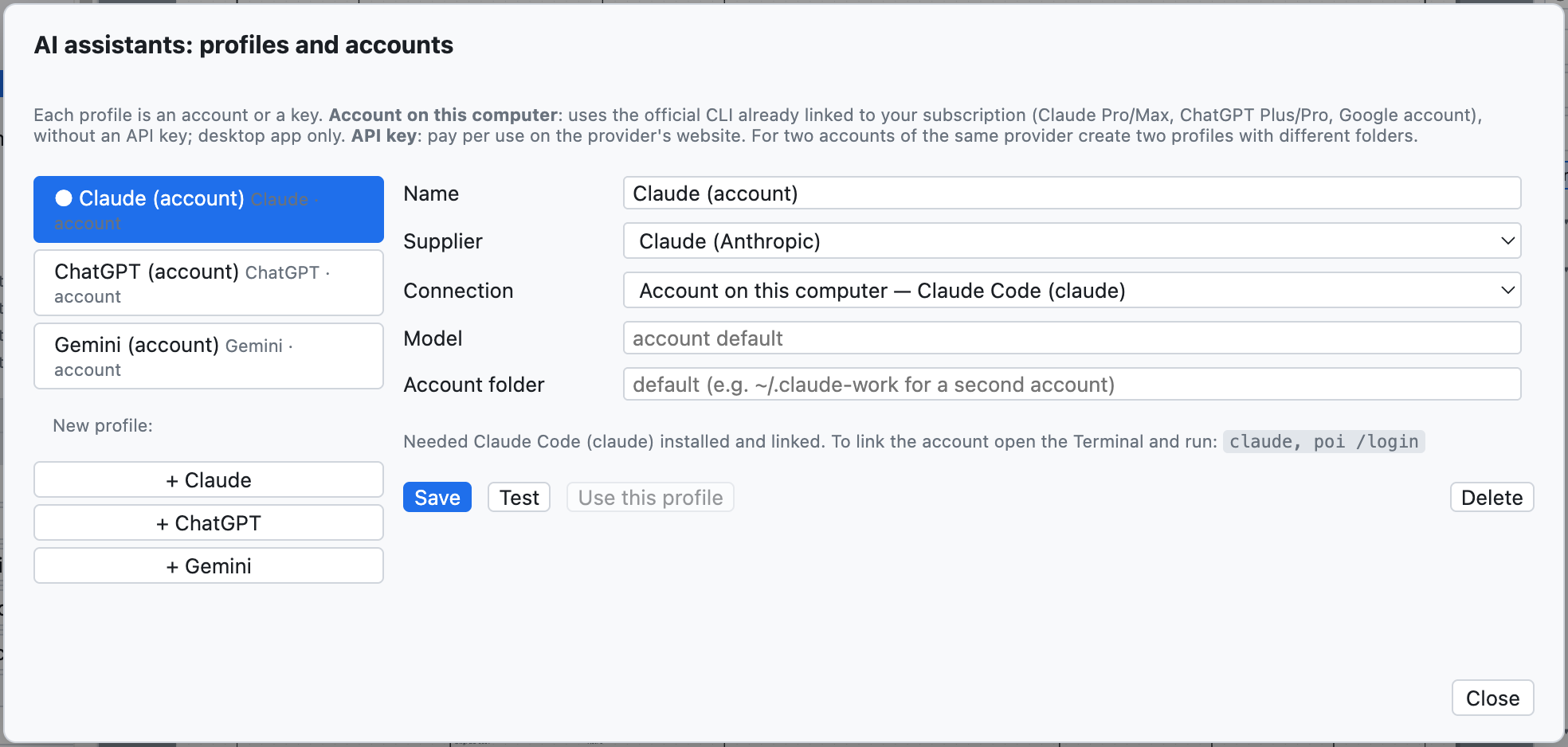
One profile per assistant: on first use there is one for Claude, ChatGPT and Gemini.
Each profile has a name, a provider, a connection method and a model. You can have several profiles of the same provider, for example the personal account and the company one.
#Account on this computer (subscription)
In the desktop app the profile can use the provider's official CLI, already linked to your subscription: no API key, the subscription quota is used.
| Provider | Program to install | Subscription | Command to link the account |
|---|---|---|---|
| Claude | Claude Code (claude) |
Claude Pro or Max | claude, then /login |
| ChatGPT | Codex CLI (codex) |
ChatGPT Plus or Pro | codex login |
| Gemini | Gemini CLI (gemini) |
Google account | gemini, then Login with Google |
The command is run once in the Terminal. For a second account of the same provider give a different
account folder in the profile (for example ~/.claude-lavoro): the window shows the exact command, for
example CLAUDE_CONFIG_DIR=~/.claude-lavoro claude.
If the login expires, the assistant answers with the command to run (for example codex login).
#API key
With the API key connection you pay per use on the provider's website:
| Provider | Where the key is created |
|---|---|
| Claude | console.anthropic.com |
| ChatGPT | platform.openai.com |
| Gemini | aistudio.google.com |
Paste the key into the profile; List shows the models available with that key. In the desktop app the key is encrypted by the operating system and stays only on that computer.
Test checks the connection with a short question; Use this profile makes it the active one.
#Translating the dictionary
Project ▸ Translate with the AI assistant (or Translate with AI in the Translations tab) sends to the active assistant the project texts without a translation, and those translated word by word, and asks for English and German with the industry terminology. The translations enter the dictionary as to be checked (see chapter 16).
#The text format with an external assistant
You can also work with an assistant in a browser chat, without profiles:
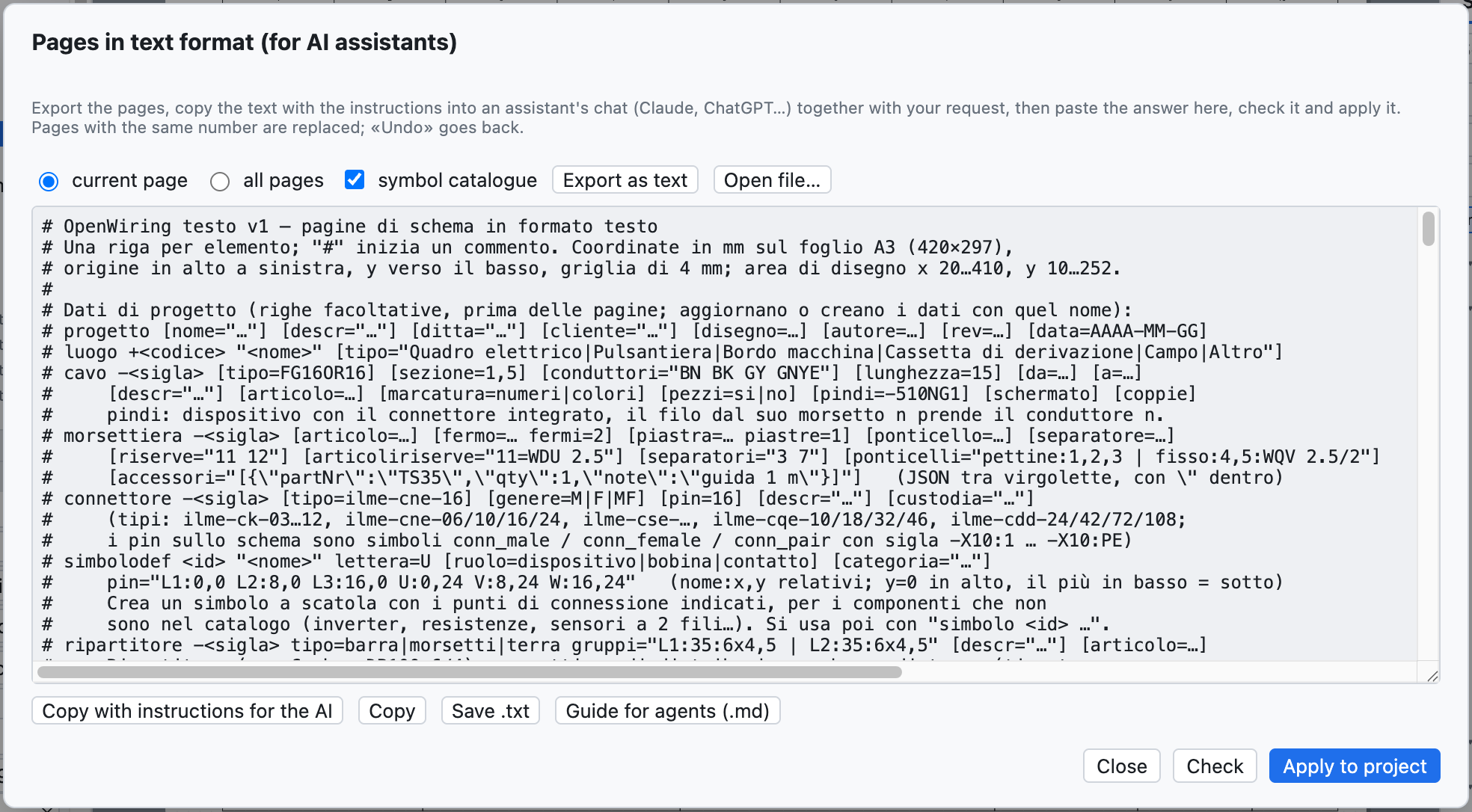
The window of pages in text format.
- File ▸ Pages as text (AI assistants)…: choose current page or all pages and press Export as text.
- Copy with instructions for the AI and paste into the chat, adding your request at the end.
- Paste the answer into the window (even with the text around it), press Check and then Apply to project.
The format is one line per element:
luogo +Q1 "Quadro elettrico"
pagina 7 "Ventilazione quadro" luogo=Q1
  simbolo potential +24V @28,24
  filo 28,24 400,24
  simbolo potential 0V @28,232
  filo 28,232 400,232
  simbolo pb_no -? @100,60 descr="Marcia ventilatore"     # "-?" = automatic tag
  simbolo coil -7K1 @100,140 descr="Contattore ventilatore"
  collega -7S1:13 100,24                                  # to the +24V bar
  collega -7S1:14 -7K1:A1                                 # by tag and connection point
  collega -7K1:A2 100,232
The complete syntax is in the agent guide (Help ▸ Guide for AI agents (.md)…), see chapter 19.
#Privacy
The schematic sent to the assistant leaves the computer and reaches the chosen provider, under its terms of use. With Current page only the open page is sent.
Edit this page on GitHub · OpenWiring 2.0.6 · GPL-3.0