 OpenWiring
#15. Check, search and revisions
#Project check
Check in the toolbar (or Project ▸ Check) checks the whole project and opens the Checks tab of the Lists view.
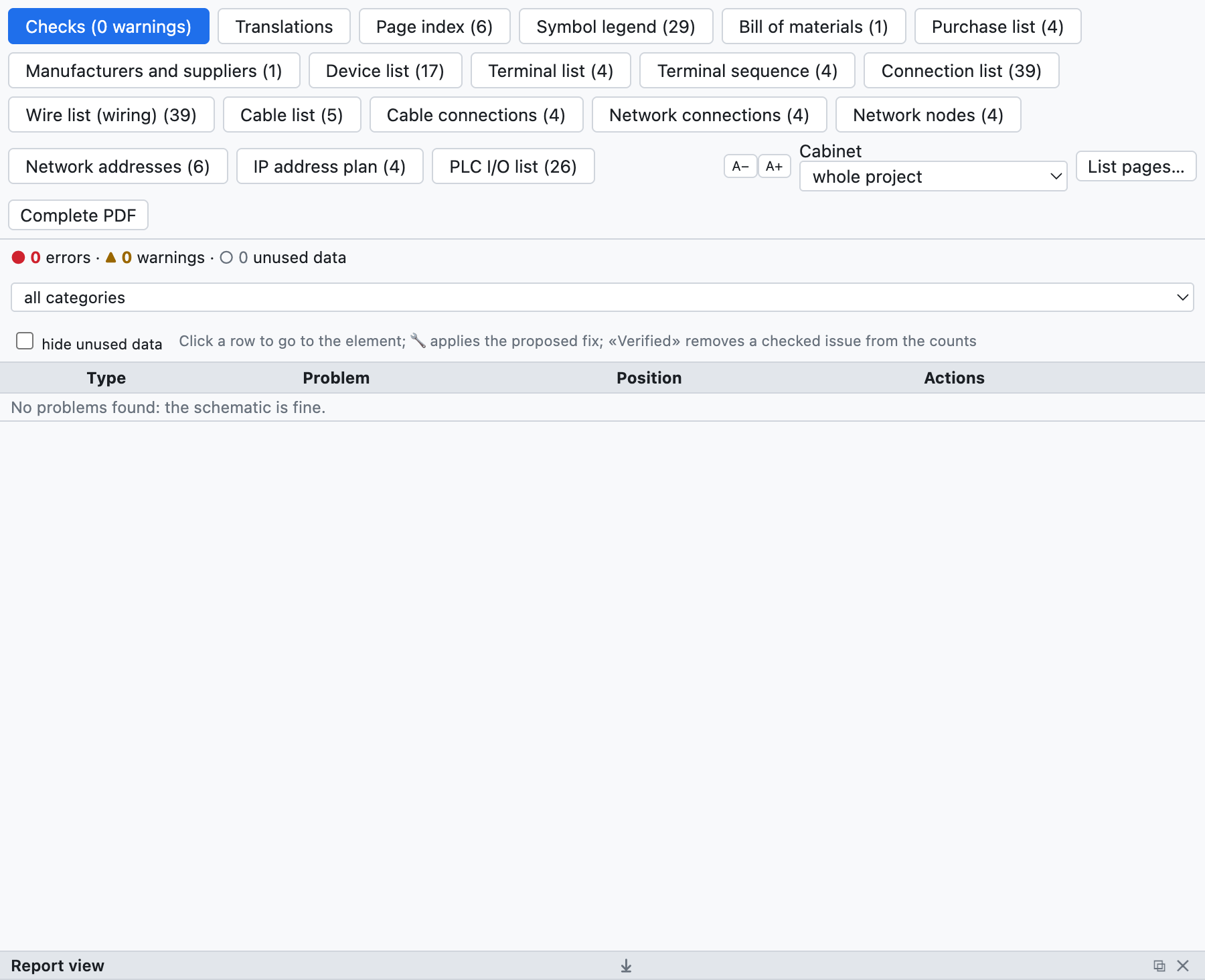
The example project has no problems. For an example with warnings see chapter 3.
Problems are divided into:
- errors (●): to be corrected, for example a short circuit;
- warnings (▲): probable errors, for example a free connection point;
- unused data (○): data to tidy up, for example a part copied into the project but not used.
They are filtered by category and hide unused data removes the ○. A click on a row takes you to the element and selects it.
#What is checked
| Category | Examples |
|---|---|
| Short circuits | different potentials on the same conductor (L1 with N, +24V with 0V), interruption points with different names connected, components with both terminals on the same conductor |
| Apparent connections only | a wire passing over a connection point without ending there: it looks connected but it is not |
| Orphans | components, potentials, interruption points and nodes without connections, isolated wires, contacts without a coil |
| Incomplete connections | free terminals of coils, contacts, lamps, pushbuttons, I/O points; wires with a free end (bars reaching the border are allowed) |
| Drawing | non-existent or overlapping symbols, overlapping wires, elements outside the sheet, repeated wire numbers, empty pages |
| Conductor buses | wires touching the bus without the conductor name, conductors entering the bus and not leaving |
| Tags and data | duplicate or missing tags, more contacts than the part has, repeated terminals |
| Cables, connectors, networks, PLC, layout | see the relevant chapters |
| Unused data | parts, symbols, terminal strip and connector data no longer used, empty locations |
Tip: run the check before every delivery and before exporting the PDF.
#Find and replace
⌘F (or Search) opens the search in the whole project.
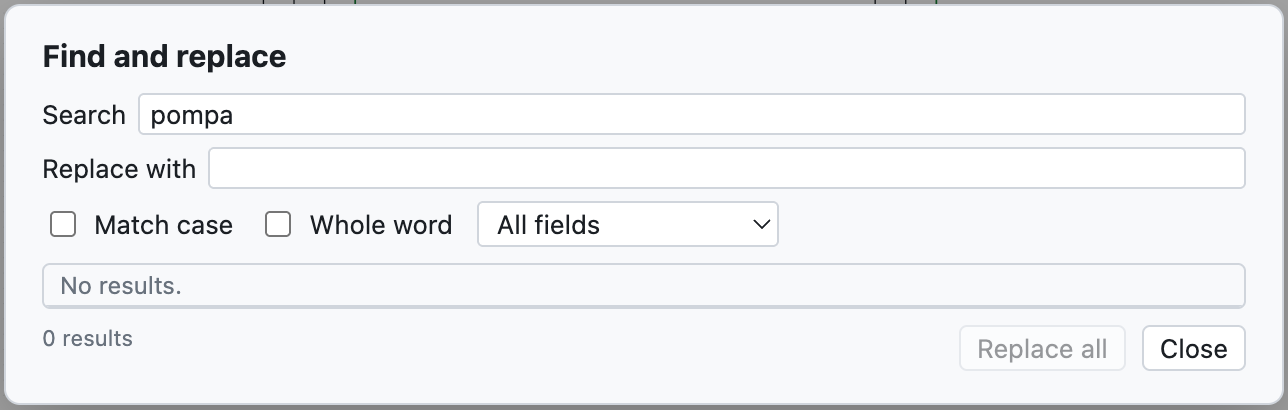
The search for «pompa» finds seven descriptions.
- It searches in tags, descriptions, texts, wire numbers, PLC names, codes; the All fields list narrows the search to one field.
- Match case and Whole word refine the search.
- A click on a result takes you to the element.
- Replace with and Replace all change the text in all the results, in one step that can be undone.
#Revisions
A revision records the state of the delivered project, for example «Rev. A – prima emissione».
- Project ▸ New revision… (or New revision… in the project properties).
- Type index, date, author and description.
From that moment:
- later changes are marked with red clouds on screen and in the PDF (they are turned off with Clouds on changes in the properties);
- the title block of each page shows the index of the last revision that changed it;
- the PDF index, the cover and the With revision table title block list the revisions.
#Comparing two projects
File ▸ Import ▸ Compare with an .ecad file… (or Compare… in the properties) compares the open project with another file, for example the version delivered to the customer. The Comparison tab of the Lists view lists pages, devices and project data added, removed or changed.
Edit this page on GitHub · OpenWiring 2.0.6 · GPL-3.0