 OpenWiring
#2. The interface
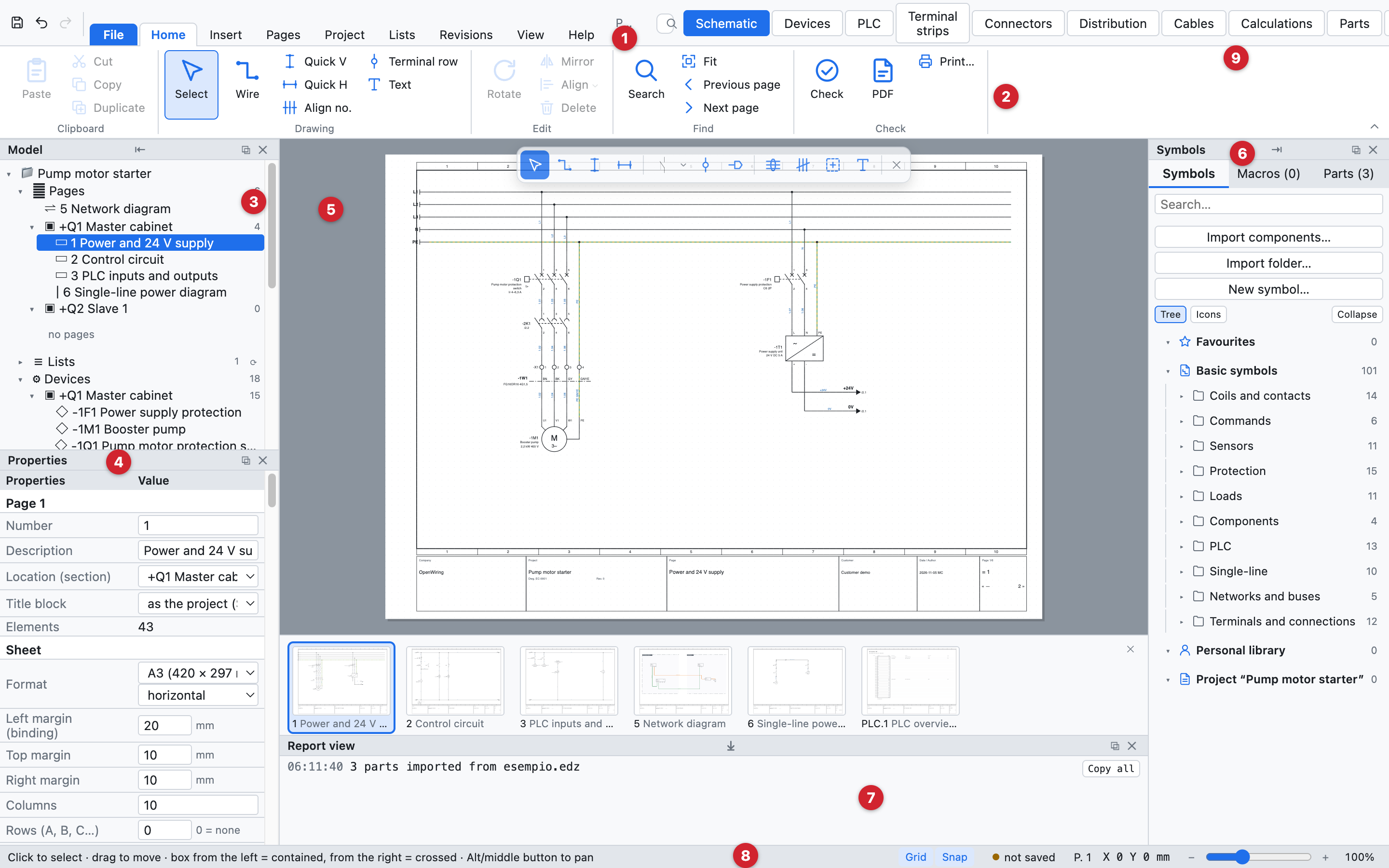
The OpenWiring window with the example project.
| No. | Part | What it is for |
|---|---|---|
| 1 | Ribbon tabs | File and the tabs Home, Insert, Pages, Project, Lists, Revisions, View, Help |
| 2 | Ribbon commands | the commands of the open tab, in groups with their name below |
| 3 | Model tree | pages, devices, =/+ structure, terminal strips, cables, project parts |
| 4 | Properties | the data of the selected element, of the page or of the project |
| 5 | Drawing area | the current schematic page |
| 6 | Library | symbols, macros and parts to insert |
| 7 | Report view | messages from import, export and operations |
| 8 | Status bar | hints on the active command, file, page, cursor coordinates |
| 9 | View tabs | Schematic, Devices, PLC, Terminal strips, Parts, Lists |
#Ribbon
Commands are collected in tabs; each tab divides them into groups with the name written below. The keyboard shortcut is shown in the tooltip of every button. A double click on a tab reduces the ribbon to the tab names (a click opens it again for one command); View ▸ Command bar ▸ Style chooses between ribbon, compact ribbon and classic menus, for those who prefer drop-down menus. Search for a command… (⌘K) finds any command by typing its name.
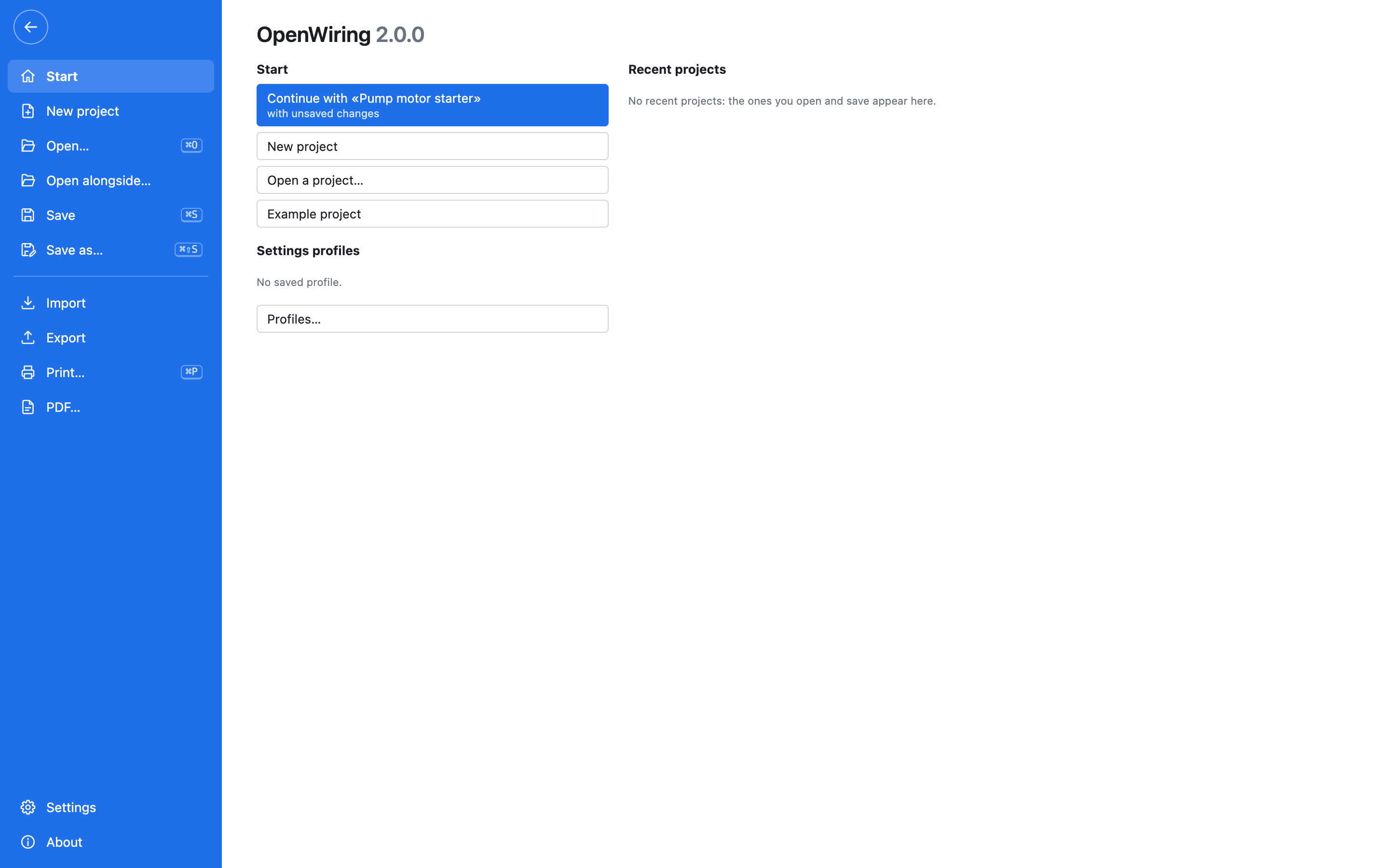
The File tab: start, recent projects, new, open, save, import, export, print and PDF, settings.
| Tab | Contains |
|---|---|
| File | new, open, open alongside, save, Import (EDZ/XML/CSV parts, QElectroTech symbols, schematic from PDF, macros) and Export (PDF, DXF, labels, PLCopen, parts, dictionary), print, settings, about |
| Home | clipboard, drawing (select, wire, quick wires, terminal row, text), edit (rotate, mirror, align, delete), find (search, fit, previous and next page), check, PDF and print |
| Insert | symbols and macros, connections (wire bus, network bus, cable, cross-section), locations, graphics (text, image, DXF drawing) |
| Pages | new page of every type, automatic pages (lists, cable drawings, pinouts), organize, sheet (title block, format and frame) |
| Project | settings and properties, profiles, numbering of devices and wires, parts, IP networks and addresses, translations, AI assistant |
| Lists | checks, lists, PLC I/O list, custom lists, views (devices, terminal strips, connectors, cables, distribution, calculations), complete PDF, labels, PLCopen |
| Revisions | revisions, release, changes of the revision, comparison with another project, save as template |
| View | panels, theme, sheet, interface and schematic language, grid, thumbnails, sheet map, radial menu, ribbon style |
| Help | manual, guided tour, shortcuts, guide for AI agents, updates, about, project website |

The Project tab.
#Home tab and drawing toolbar

The Home tab collects the commands used all the time. Above the schematic there is also a small floating bar with the drawing tools (selection, wire, quick wires, interruption points, terminals, text): switch it on and off with View ▸ Drawing toolbar.
| Button | Action |
|---|---|
| Select | back to selection (also with Esc) |
| Wire | draw wires (key W) |
| Quick V, Quick H | vertical or horizontal wire in one go |
| Terminal row | a row of terminals on the wires crossed |
| Text | free text on the page |
| Rotate, Mirror, Delete | on the selection (keys R and Del) |
| Search | find and replace (⌘F) |
| Fit | show the whole page (key F) |
| Check | project checks |
| PDF, Print… | export to PDF or print |
The quick access bar at the top left holds Save, Undo and Redo (⌘S, ⌘Z, ⇧⌘Z).
#Model tree
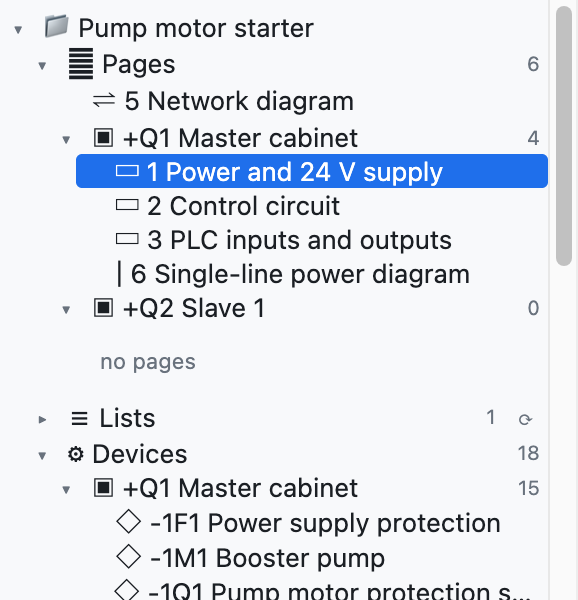
The tree shows the project and opens or closes with the triangles ▸ ▾:
- Pages, grouped by location (cabinet, pushbutton station…): a click opens the page.
- Devices, grouped by location: a click goes to the device and selects it.
- Structure =Plant +Location: devices by function and location (see chapter 7).
- Terminal strips and Cables: a click opens the terminal strip or selects the cable line.
- Project parts: the parts used.
Below the tree are the page buttons: + Page, + Cover, + Single-line, + Network, + Layout, ⧉ (duplicate the page), ↑ ↓ (move) and ✕ (delete).
#Properties
The panel shows the data of what is selected:
- nothing selected: the current page and, below it, the project data;
- a symbol: tag, device data, ordering, connection points, position;
- a wire: wire number, network, connections, cross-section, colour;
- several elements: the common fields.
Type in the field and confirm with Enter or by leaving the field. Values in grey italics are hints or values taken from the part.
#Library
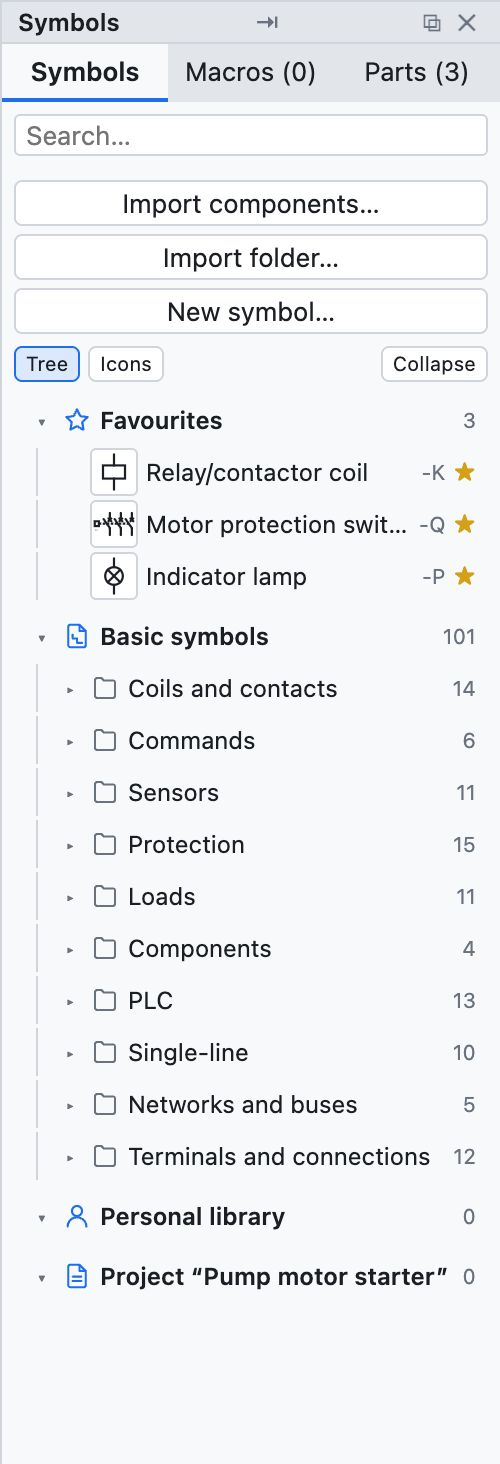
The right-hand column has three tabs:
- Symbols: the IEC 60617 symbols divided by category (coils and contacts, commands, protection, loads, terminals and connections, PLC, networks and buses, single-line), plus those imported or drawn by you. The Search… field filters by name. At the top are the ★ Favourites: the star ☆ of a symbol (or right click on a component ▸ Add to favourites) puts it here. Favourites apply to all projects.
- Macros: circuits saved for reuse (see chapter 13).
- Parts: the library of manufacturers' parts.
#Right-click menu
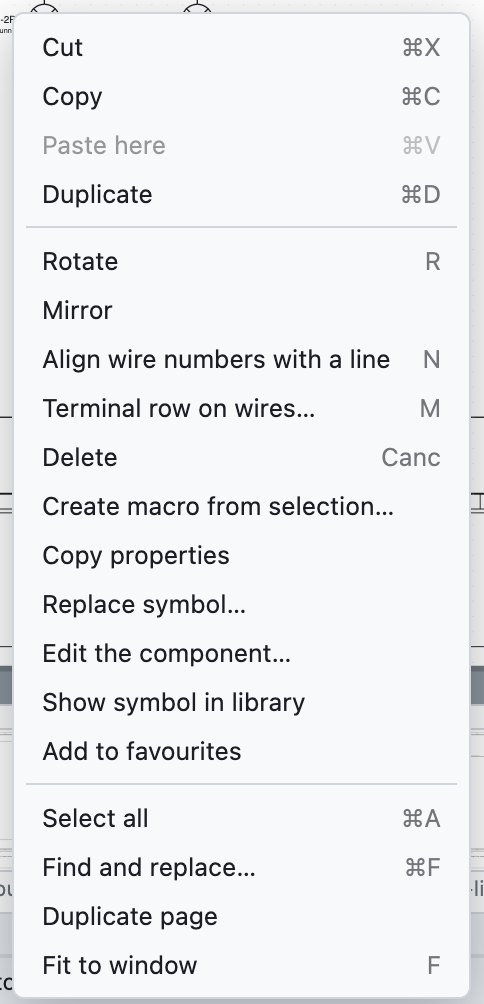
Right-clicking an element opens the most used commands: cut, copy, paste here, duplicate, rotate, mirror, delete, create macro from selection, copy properties and paste properties of -X (all device data except the tag, chapter 7), edit the component, add to favourites, highlight potential (on wires), go to the main element or to the contacts, add level (on terminals), select all, search, duplicate page, fit to window.
#Views
The tabs at the top right change the central area:
| View | Content |
|---|---|
| Schematic | the drawing page |
| Devices | the device navigator as a table |
| PLC | cards, addresses and I/O list |
| Terminal strips | the terminal strip navigator |
| Parts | parts management |
| Lists | checks, translations and all the lists |
#Moving around the drawing
| Action | How |
|---|---|
| Zoom in and out | mouse wheel, around the cursor (on a trackpad: pinch) |
| Pan the view | middle mouse button, or Alt + drag |
| See the whole page | F or Fit |
| Previous or next page | PgUp / PgDn |
| Go to a reference | click a cross-reference such as /2.4 |
#Theme, sheet and language
View ▸ Theme chooses a light or dark interface or the system setting. View ▸ Drawing sheet chooses a white or dark sheet (as in CAD programs with a black background). PDF, DXF and printouts are always on a white sheet. View ▸ Language · Lingua chooses the language of the interface: Italian, English, French, German or Spanish.
Edit this page on GitHub · OpenWiring 2.0.6 · GPL-3.0